Saturday, May 30, 2020

Technology and Operations : New Staff, Building Entry Procedures, Phishing Emails and Summer Prep

New Computer Technician

Many of you have had the chance to work with Josh McNutt as you have been returning to prepare your classrooms for summer. Josh was hired shortly before our extended break in the role of Computer Technician. Josh is a problem solver, brings a positive attitude, and strong work ethic to the role. We are glad to have him part of the team.

Tony Slepko, our Systems Technician, has been working with Josh to not only facilitate summer upgrades and projects, but they have been working with parents, students, and staff to solve a wide variety of hardware and software problems during this time. Their efforts are appreciated.

If you need their services, please use the technology work orders found on the district website under the "staff" tab. It not only sends an email to all technology staff but provides a record that the team can use to track progress of your request. For convenience, you can click here to get to the forms. Feel free to bookmark them. 

REMINDER: Windows 10 upgrades are taking place over the summer. You need to back up your files on your classroom desktop or laptop. If you are taking home your laptop for the summer, you must sign it out using the equipment loan form available at your building's main office. Tony or Josh will schedule a day/time for you to bring in the laptop for upgrades. This does need to happen for all machines due to security concerns.

Building Entry Procedures

Thank you to all staff who have been cooperating with the current building entry procedures. We have been working with Geauga Public Health in implementing these. We will continue to use them as a partner moving forward, especially as we are looking towards fall and guidelines from the state and ODE with regards to reopening school. 

As a reminder, these are the procedures for entering and working in the building for all staff.

1. A station is placed at the main entrance of each building. This is the only door that you are allowed to enter.
2. Check your temperature upon entry. (Note: If you have a high temperature, you will need to notify your building principal or supervisor and go home.)
3. Sign in and record that your temperature has been checked.

4. You are required to bring personal gloves or to take a pair of disposable gloves. These are not meant to be in place of hand washing.

5. All staff members and visitors are required to wear a mask. We are asking that you bring one from home. A disposable mask will be available at the building, if you are unable to bring one. Masks must be worn unless you are alone in an office or classroom. 

6. Do not congregate with groups of 10 or more staff members in common areas such as lounges or work rooms. If you are in common areas for any reason, you must wear a mask. Social distancing must be maintained in any situation.

7. Please use hand sanitizer at stations or wash hands in classroom sinks or bathrooms as needed. Remember this is one of the key ways to prevent the spread of germs.

Phishing Emails/Phone and Text Scams

There has been an increase in scammers using the current health situation as an opportunity to scam. Besides emails, phone and text messages are also subject to these types of attacks. I found a couple of great resources with info to help protect yourself against both. As always, reach out with any questions.

Remember these can also happen on your personal phone and emails so always be cautious.


Summer Preparations

As we look towards summer and prepare for the coming school year, please remember to take home personal items from your classroom. We will have to be focused on cleaning spaces and surfaces on a very different level now and moving forward. The more open and clear spaces are, the easier they are to properly clean and disinfect. 

If you have been storing outdated instructional items, this is the time to get rid of them so storage space can be used for the items that you truly need for daily instruction. 

As you prepare for the summer, reach out if you have questions. If you need help, need a repair or have work that requires attention in your classroom, please put in a maintenance work order.  I do want to thank our maintenance and custodial staff for all of their help in working towards adjusting how we clean our buildings during this time. We are continuing to monitor new information as it arrives to make sure we are meeting all recommendations for a safe environment in our schools. We are also continuing to work with Geauga Public Health to verify our procedures meet those recommendations. 

Friday, August 16, 2019

Start of the year: Technology and Operations Updates and Reference 2019/2020

Welcome Back!

Below is some helpful information to find resources you need during the 2019/2020 School Year.

Key Cards


We have upgraded the key card system. This process involved upgrading the security panels and software that handles all of our key card access. If, for some reason, your key card is not working, please let us either Mark Richardson or Sean Whelan know immediately. We will resolve it right away.

If you are new to the district and need access or need access outside of normal hours, please fill out the attached form. It's also available on the staff intranet in the district forms section under facilities.

Staff Intranet

Important insurance and staff forms are located on the staff intranet. The log in is the same as you would have used in previous years or to update your website, if you use Eschoolview. If you have lost that username and password, please let me know. I will be sending this info our to new staff this week.

Work Orders

Please make sure that you are using work orders for any classroom requests. 

Technology Work Orders: These are located under the "staff" tab on the district site and should be used for any technology needs. These are broken up by building and send emails to everyone in the technology department and any related supplemental holders. You do not need a special account. It is the same Google Forms as used in previous years. Please use this for all requests as they are searchable by Ed and Tony based on building and gives us a history of repair needs in your room.

Maintenance and Custodial Work Orders: If you go to the "staff" tab under work orders, you will see a link labeled "maintenance/custodial work orders". Your user name is your email address. The password will be the same as last year. If you have forgotten it, the system allows you to reset it. Please let me know if you have any issues logging in. These should be used for any work requests for your classroom. It sends the request to your principal, and Mark Richardson, our facilities manager. Work is then assigned to maintenance or custodial team members based on need.

Staff Emergency and Snow Calling Information 

Please use the link and access info below to approve and update your info. Information you entered from last year is already in the system. You can log in and verify it. It will also allow you to change any new phone numbers/email addresses.


Please note that new staff will be receiving a separate email when you are entered into the system early next week.

Propping Doors

Please do not prop open any doors without adult supervision. We have had multiple instances of doors being left open for many hours an in numerous cases being forgotten. We can't leave our building open to this security risk. If you prop open the door, you have to monitor it and make sure it is closed immediately, if you have to walk away. This isn't about inconveniencing anyone, we have to be consistent in how we control access to our buildings. With our new key card system, we are able to schedule doors, when appropriate. 

Outside Furniture/Fire Safety Reminders

Every year, our PSW training goes over many fire safety requirements for public buildings. While this is not comprehensive, please remember that we have to follow these.


Please make sure to put in a work order for approval before bringing in any new outside furniture. While many home furniture items may seem perfectly safe for classrooms, there is a liability issue based on construction and warranty. School specialty companies are usually the best source because items are usually rated for use in public buildings. We do not want anyone having to unnecessarily take home furniture that was brought in because it wasn't approved. A work order sends the request to your principal and Mark Richardson and protects you and your students. In most cases, the items you are bringing in to enhance your classroom are just fine. Things to avoid: Items with Pointed corners, loose or wobbly chairs or tables, furniture that is top heavy, etc. 

The goal here is to protect you and your students. No one wants to prevent you enhancing your classroom or instruction, it's just a safety and liability question. When in doubt, please ask.

Saturday, August 18, 2018

Start of the Year 2018/2019 Technology and Operations Updates

Welcome Back!

I'm receiving a number of questions so I wanted to compile the answers in one post to hopefully make it easy for everyone to have the same information.

Staff Intranet: Important insurance and staff forms are located on the staff intranet. The log in is the same as you would have used in previous years or to update your website, if you use Eschoolview. If you have lost that username and password, please let me know. I will be sending this info our to new staff this week.

Work Orders

Please make sure that you are using work orders for any classroom requests. 

Technology Reporting and Support Tickets: These are located under the "staff" tab on the district site and should be used for any technology needs. These are broken up by building and send emails to everyone in the technology department and any related supplemental holders. You do not need a special account. It is the same Google Forms as used in previous years. Please use this for all requests as they are searchable by Ed and Don based on building and gives us a history of repair needs in your room.

Maintenance and Classroom Work Orders: If you go to the "staff" tab under work orders, you will see a link labeled "work orders". Your user name is your email address. The password will be the same as last year. If you have forgotten it, the system allows you to reset it. Please let me know if you have any issues logging in. These should be used for any work requests for your classroom. It sends the request to your principal, and Mark Richardson, our facilities manager. Work is then assigned to maintenance or custodial team members based on need.

Staff Emergency Contact and Snow Calling Information 

Please use the link and access info below to approve and update your info. Information you entered from last year is already in the system. You can log in and verify it. It will also allow you to change any new phone numbers/email addresses.


Please note that new staff will be receiving a separate email when you are entered into the system this week.

Security projects, Safety Plans, and Propping Doors

This year, each building will be working to develop new safety plans. The new plans are due to the state by the end of February. More information will be rolled out by building principals, as work begins on these plans. Mark Rich, our new School Resource Officer and our local police and fire departments will be key resources. Not only are we looking to develop the larger state document, but we will be working to put together a simple one page reference for all staff and substitutes to help. Feedback opportunities will be provided at the building level. More information to follow.

The high school entryway modifications are almost complete. This will allow for greater control of how visitors enter the building. A similar project is going to begin at the middle school. Four firms are being evaluated for the next board meeting. This is a more extensive project because of the needs of the entryway. The original main entrance will be converted into a visitor's entrance.

We are also in the process of doing major upgrades to our security card entry system behind the scenes and beginning a multiphase upgrade to our security camera systems. The security of our students and staff are a major priority this year.

On a side note, please do not prop open any doors without adult supervision. We have had multiple instances of doors being left open for many hours an in numerous cases being forgotten. We can't leave our building open to this security risk. If you prop open the door, you have to monitor it and make sure it is closed immediately, if you have to walk away. This isn't about inconveniencing anyone, we have to be consistent in how we control access to our buildings.

Outside Furniture/ Stacking Items

Please make sure to put in a work order for approval before bringing in any new outside furniture. While many home furniture items may seem perfectly safe for classrooms, there is a liability issue based on construction and warranty. We do not want anyone having to unnecessarily take home furniture that was brought in because it wasn't approved. A work order sends the request to your principal and Mark Richardson and protects you and your students. In most cases, the items you are bringing in to enhance your classroom are just fine. Things to avoid: Pointed corners, loose or wobbly chairs or tables, furniture that is top heavy, etc. 

There are a few classrooms that have plastic items such as milk crates or modular storage that are stacked higher than student level or even rating for the weight requirements. The big problem is that you can see the lower items actually buckling. We do not want these falling on students or staff. If this applies to your room, please decrease the height of the stack. Your building custodians or principals are an excellent resource, if you need advice.

The goal here is to protect you and your students. No one wants to prevent you enhancing your classroom or instruction, it's just a safety and liability question. When in doubt, please ask.

1:1 Devices

This year, the board approved additional funding to increase our rollout of Chromebooks to classrooms.

The week after labor day, every 9th grade student will be receiving a HP G6 Chromebook and a case. The device will be able to be taken home and will have GoGuardian installed for filtering. This is a pilot group. If the program is successful, it will be continued next year. Parents are charged a fee and students will keep the device upon graduation. More information will be coming about this rollout.

Middle school carts that still have the old silver Samsung Chromebooks will have those devices replaced in September.  We are also adding additional carts to that building.

5th Grade Chromebooks will be replaced. Their previous Chromebooks are still in good shape and will be used to replace second grade iPads in September. We ordered additional units to make sure that there are full class sets.

Friday, May 19, 2017

Technology Newsletter 5/19/17 Google Keep and Edulastic

Google Keep

Google Keep is a relatively new collaborative note taking and reminder tool that is inside our Google Accounts. I made a short video explaining it. Please reach out if I can help further.


Edulastic
I know some of you are already using Edulastic. 


Edulastic allows you to create online assessments with free teacher accounts. It offers question items that are premade that are linked to the Common Core and the ability to create your own test items. There are 30 different types of interactive test items that you can create.


Thursday, December 1, 2016

Newsletter 12/1/2016: Wireless Transition Devices Need to Shift Over, Survey for second phase of staff machines, Hour of Code

Wireless Transition Begins Please Connect to New Network

During the week before Thanksgiving Break, we let you know that the new wireless was live. We kept the old network active to allow staff time to gradually transition and to test for any bugs in the system. Thank you for all of you who have been trying it out and giving immediate feedback. Overall, most issues we have encountered are actually due to the old wireless still running at the same time. For that reason, we are beginning the transition. 

Ed is starting to shut off the old wireless

There are two options:
1)  Main network for staff computers, laptops, chromebooks and ipads for student use. 
Network ID: WestG (all 4 buildings)
Password:  wolverines (all lower case)

2) Student phones, tablets, staff casual use equipment and any guests
WestGuest – open (no password)

Please encourage students to use the guest account for any of their own personal equipment (Not school owned). We will bump their personal devices from the main wireless because we want to prioritize instructional traffic. The goal with the two networks is for us to be better able to prioritize instructional traffic from casual traffic.


TROUBLESHOOTING:

As with the wireless before, no system is perfect. We are dealing with many variables from construction materials in walls and ceilings, various versions operating systems, to other equipment in the classrooms and buildings that may cause interference. Trying the troubleshooting tips before reporting issues is a huge help. If none of these work, please fill out a trouble report. Most of the time, we do not know there is an issue until you tell us. 

1) Reboot: This works for any device from iPads and Chromebooks to Desktops and Laptops. All devices have drivers that run the various components inside them. Sometimes connectivity issues are actually related to software on the machine itself. A driver can cause repeated disconnects. Rebooting often resets this software and fixes those problems.

2) Try connecting to WestGuest. The guest network is actually it's own separate network. It also gives you another option if WestG is not working for you. 

3) Try a different website. Sometimes the issue is a website you are connecting to. If you are only trying one website, try to connect to google.com or yahoo.com. If sites like that work, the website is the problem.

If the above fail, please put in a trouble report. It lets your building supplemental holders and the tech team know that you are having an issue. It is incredibly helpful if we know what you tried because sometimes that gives us the answer to what your problem actually is. It gets you up and running faster.


Hour of Code

If you haven't heard of this, concepts of computer programming apply to all disciplines. It helps students develop skills of logic and procedures to solve problems. Next week, is the annual hour of code. Please check out the site and article before and see if it is something you can fit into your schedule. There are activities premade for grades K-12. If I can help in some way, let me know.


I know Mr. Spotts is organizing something with this at the high school that looks great. The concept applies to any age range and is very easy to try with no computer programming background needed. There are easy to follow teacher guides right on the site and the engine allows you to select grade level and even devices you would be using.

Survey for Round 2 of Staff Replacement Machines

Last year, after winter break, half of the teaching staff started receiving new machines as a part of the two year replacement program. I am ready to begin the process of ordering round 2. If you did not receive a new desktop or laptop last year, please fill out the survey so I can order an accurate amount. 

The survey will be open until next Friday, December 9. Please choose either desktop or laptop. Anyone who does not respond will have a laptop ordered. Again, this is only for staff who did not receive a replacement last year. 


Wednesday, November 9, 2016

Newsletter November 9, 2016 : Staff Computers Wave 2 ,Status of Building Needs, Network Timeline Update

Staff Computers Wave 2

Last year in November, we started gathering information from staff on preference between desktop and laptop for the first wave of teacher replacement computers. This covered half of the staff. This month, I will be distributing a new survey to the remaining members of the staff to order and address these replacements.

Computers will arrive likely over winter break and we will begin distributing them early next year. There is a certain amount of setup time so computers will be distributed in the same manner as last year. This will finish off our remaining staff who have been patiently waiting for new machines. The board was kind enough to shorten this 3 year cycle to a 2 year due to the need. 

Status of Building Needs

Thanks for your quick reporting of issues. In the case of printers, some of them are not owned by the district and Ed worked with the companies to gain access to get them up and running with new addresses. Most recently, the high school library and guidance office are back online. Make sure to use the trouble reporting tools for any other issues. It is helping us to make sure nothing is missed. Both Ed and Don have been working hard to follow up on all issues. Thanks for your support.


With regards to any HVAC issues, Navitus (the company that manages our energy controls) is currently working with the operations office to fix these. There is a solution in place to better organize these by building that will quickly resolve and prevent the cause of the original problem. Thanks for your patience and reporting of these issues. They have been relayed to Jim Russo to be addressed. 

Network Update

The team wiring all 4 buildings and placing the wireless access points is finishing up. There was Air Testing taking place this week so we didn't want to turn on the new wireless until that was done. Wednesday, November 16 and 17 are the dates that the company will be turning on the new wireless. You'll notice that devices are being put in every other classroom. This will increase our capacity and also correct problems in areas where we currently have limited or no wireless.

The new wireless access points will have the same passwords as the current wireless. Due to this, a number of devices may connect automatically. If not, a reboot may be needed. We will send specific information in a follow up email as we get closer. It will work the same as our current wireless in that you will enter the password and be able to move between access points without having to reconnect again. 

Also in the plans is a guest account. We will start having our students use this for phones and other BYOD. We want to separate them from our instructional devices so we can have better control over our bandwidth.

Wednesday, October 19, 2016

Newsletter 10/19/16 : Network update (including info on expanded wireless), Election Central Resource, Copyright and Intellectual Properties

Network Update (Error Reporting)

Please use the error reporting form if you are having issues. It actually sends emails to Ed, Don, and myself. I saw an email sent asking to gather issues. While this seems like a good concept and is done with the best intentions, it actually delays getting information to us which ultimately has you waiting. Ed and Don are always very responsive so please use these forms. Go to the district website under "staff" and click "technology reporting". 


If you use the reporting forms, it sends each of us an email right away and you will see that each form is building specific. It also gathers information we need to resolve your issue quickly. This is very helpful if we are already in your building because we get an immediate notification and your problem can be solved immediately.  It also populates to a spreadsheet. We often get backlogged with error reports but it makes sure that we do not miss any issues on the list. Your concerns are important. We can't help if they aren't reported.

We are in the process of fixing any final issues with the network and preparing for next week, when the expanded wireless will start to be activated. The current date of this looks to be a week from Friday. I will update you with any changes. Wiring needs to be finished and the middle school and high school. This will put devices in every other classroom and also in common areas. For those of you that notice wifi drops in certain areas because they don't have a dedicated wireless device, this will improve that issue.

EX: The high school cafeteria does not have a current wireless device in that large common area. While it is able to pull from the library and a device in another hallway, connectivity is diminished. Arrays will be added to this area to improve this longstanding problem. 

EX: There is a hallway where 4 classrooms are currently connecting to a single access point. When all 4 classes are working, staff has regularly reported connectivity slow downs and drops in connectivity. Arrays will be put in every other classroom on this area which will double connectivity and take the strain off a single device. With these now going in classrooms, there will also be less interference cutting through multiple walls and corners which also causes connectivity issues. 

Election Central Resource


If you have not checked out this resource, it is very helpful with this very interesting election year. There are links and resources that are valuable to a wide variety of grade levels. It was shared at the recent Ideastream meeting and I wanted to make sure you were aware of it.

Copyright and Intellectual Properties


Also at Ideastream was a great presentation on Copyright and Intellectual Properties. The internet has provided unprecedented accessibility to information for teachers and students. A common assumption is that we are allowed to automatically use everything because it has an educational purpose. This isn't always the case. 

This presentation shares resources useful for teachers and also has ideas that can be used with students. If you need access to more, please let me know.

Wednesday, August 24, 2016

Ed Tech Newsletter 8/24/2016 : New Process for Technology Reporting, Network Upgrade News, Infinite Campus Parent Portal

New Process for Technology Reporting

Ed, Don and I have been talking over the past few months on piloting a new method for technology reporting. A new page has been created called "Technology Reporting". This page links to building specific forms for reporting technology problems. It also has a section for instructional support. 

To get to the new section:

1) Go to westg.org and go to the staff section.
2) Click on "Technology Reporting" (The link is also below. Feel free to bookmark it)


The first section is for hardware and software issues. When you fill out a report, it sends and email to Ed, Don and myself. It also sends an email to the AV/Tech supplemental holder, if your building has one. This is a replacement for the old trouble reporting system.


The second section is new. It is for instructional support. This sends an email to your building instructional tech supplemental holder (If applicable) and me. This section is for help with incorporating technology into a specific lesson.


You don't need a separate log in for these forms. They are Google Forms. The point is for this to be convenient and easy. Please start to use these instead of emails. It serves the same purpose but also gives us a spreadsheet record of your request. This prevents your needs from getting lost during particularly hectic weeks. 

Network Upgrade News

I wanted to give you a quick update on our network upgrade. As you know, our wired network is aging with most equipment averaging 10 years and beyond. Also, our wireless needs have outgrown our current setup. Last school year, I applied for federal E-rate. Due to this and matching district permanent improvement funds, we have been able to move forward on ordering equipment for an over $230,000 network upgrade. 

This will completely replace the equipment running our wired network. It will also allow us to install wireless devices in every other classroom. This will more than double our current wireless coverage and help resolve the many "holes" in our current wireless connectivity. 

Beyond that, there are also a number of improvements that will allow us to better control and prioritize internet traffic during high traffic times. We can also eventually roll out student and teacher specific network log ins that will allow for greater control over which devices have the strongest access to our bandwidth. 

All of the equipment has just been ordered. Over the next few weeks, I will be giving you more specific details on what this upgrade timeline looks like.

Infinite Campus Parent Portal

If you were with us when we implemented Progress Book, you will remember that there was an initial transition period where our district worked with LGCA to fix any problems behind the scenes. Currently, we are in a similar place with Infinite Campus. 

Our data went live at the end of July and families need to be connected in "households" which is new for our district. A number of staff members have been helping out to connect students, siblings and parents into these groups. This is necessary for us to roll out the parent portal to allow parents access to student grade books and ultimately report cards.

Tomorrow, we will be posting a message letting parents know that the parent portal is coming. We will be releasing follow up information on the timeline for this and what to expect with regards to building communication. 

I know any transition to a new platform can be stressful. Thank you so much for your professionalism and teamwork at the initial trainings. Please feel free to put in an instructional support ticket if you are having any issues with Infinite Campus.

Friday, May 27, 2016

Ed Tech Newsletter 5/27/2016 : Digital Tools for Quizzes and Feedback, Google Classroom, Tips to Prepare for Summer!

Digital Tools for Quizzes and Feedback

The need for feedback on student understanding of instruction has always been an essential part of what improves educational practice. We are in an interesting era in that new and varied free tools are arriving that allow for a wide variety of ease to gathering this information. I found a great article that links to 35 different digital tools that can help with this process. As with anything that I send out, please feel free to reach out if I can help in any way with the implementation of any of these resources.


60 Smarter Ways to Use Google Classroom

I mention Google Classroom quite often. If you don't currently manage student content delivery through your website or Moodle, this a a free and ease to use tool. The attached article has some great ideas for using Google Classroom to make your life easier and to maximize your time. I try to share content that I find that is good for not only new users but more experienced staff. If you are already using Google Classroom, please share your experiences with other staff members. Especially if you have unique ideas that are not listed here.


Prepare Classroom Equipment for the Summer

As we are winding down the school year, I am sure many of you are starting to plan to organize your classroom for summer. Technology benefits the most from putting various cables and accessories away in a careful and organized fashion. Many students are able to help with this process and like the leadership role so consider using them as a resource to help with some of these:

Helpful Tips to Consider:

1) Roll up cables that dangle off the sides of tables or on the floor:

 In many cases these tables are moved around the room or into hallways as a part of the cleanup process. By rolling up the cables, you can help save any unnecessary wear and tear on the cables while keeping them from getting tangled. This saves a huge amount of time in August when it is time to set everything up again.

2) Put loose equipment away in cabinets and drawers:

Remotes, pens from smartboards, mice, and smaller equipment such as document cameras and keyboards often benefit from being put away in cabinets or drawers. It keeps the equipment from being lost but also prevents dust build up during the summer classroom cleaning.

3) Back up your files:

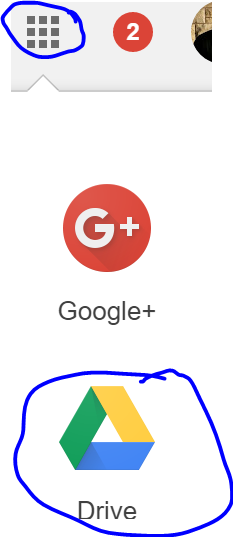
Google Drive has free unlimited storage. If you don't regularly back up your files, to Google Drive, you want to start. You can access the files from any computer when you log into your Google Account. While we do have district servers, the space is limited and you can't access those files from home.

To back up to drive:

1) Click on the navigation tool and choose drive:


2) Choose "new"


3) Choose "file upload" for a single file or "folder upload" for a whole folder.

Note: Uploading a folder can take some time depending on the amount of content. I highly recommend starting that early in the day when you can walk away and do something else.

Friday, May 20, 2016

Ed Tech Newsletter 5/20/2016 : Google Slides Q and A, Embed Charts from Sheets in Slides and Docs for easy editing, Rigor and Relevance Framework

Embed Charts into Slides and Docs

Eric Curts always shares useful tips. This week, he posted an article revolving around how to add a chart to Google Slides or Google Docs that can be easily modified. This is very useful if you are creating something for your students with information that needs to be changed regularly.

Google Slides Q and A

Google rolled out a free update to Google Slides. It's called Q and A. This is really nice if you want student feedback during a presentation. 

To activate it:
1) Click the arrow to the right of present to enter "presenter view"


2) You will see the audience tools section. Click "start new" to allow the audience to submit questions or comments.


3) Students will go to the website URL displayed at the top of the presentation.


4) As questions or comments are submitted, you can see them in the pop up window.


5) The article below addresses this further, along with the new laser pointer option. Please let me know if you need help trying any of this.


Rigor and Relevance Framework to Effectively Integrate Google Apps

At PD Day, we held a session on the SAMR Model. These frameworks to guide thinking with integrating technology are helpful because they can often guide a lesson idea towards the upper levels of Bloom's Taxonomy. It also sets up a process for gradually building to that so students are ready for it. 


Friday, May 6, 2016

Ed Tech Newsletter: Happy Teacher Appreciation Week! Google Classroom Schedule Assignments Update, Flipboard and 10 Terrific Tools for Teachers

Happy Teacher Appreciation Week!


I am noticing more hits on these newsletters each week. Thank you for taking the time to check these out. These newsletters are put together for the purpose of sharing free and easy to implement tools that will help facilitate your instructional goals. Please feel free to reach out if I can help you with any of these. Your efforts to take advantage of new tools to educate our students are appreciated. I hope you had a wonderful teacher appreciation week!

Great news ! Google Classroom Schedule Assignments and More


Many of you are already using Google's free Classroom tool to organize and distribute lesson content to your students. It's also a great way to create interactive assignments and quizzes through Docs and Forms. Over the past week, Google has rolled out a new scheduling feature. Assignments, quizzes, and classroom announcements can be created behind the scenes and be set to "go live" with students when you decide. You can also use it to create assignment drafts behind the scenes. This is much needed functionality and adds convenience. 

This fall will lead to some very specific features towards communicating with parents and guardians. Google continues to improve their free tools based on teacher feedback. Do not hesitate to send them a wish list a features through the feedback tool. You are the target audience so you can help drive the direction of Google Classroom.


Flipboard and 10 Terrific Tools for Teachers


If you haven't used Flipboard, it's a wonderful tool. It organizes news on the web into organized categories that are updated daily. There are many categories dedicated to education that can be personalized to your specific interests. 

One of the articles that caught my eye this week was by Eric Curts. I have mentioned him before and am a big fan of his website. This week, he wrote an article sharing 10 Terrific Chrome Extensions and Google Drive Add Ons that make a teacher's job easier. Many of them are new and are well worth checking out. 

Monday, May 2, 2016

Ed Tech Newsletter May 2, 2016: CaptureCast: Screencasting on Chromebooks, Twitter in Education Article, Second Grade Projects

CaptureCast: Screencasting on Chromebooks

Screencasting is a great opportunity to create content for student learning. It's also a terrific way for students to use a classroom device to explain their learning. This is often associated with iPads apps such as Explain Everything or the PC/Mac tool Screencast-o-matic. Chromebooks can also benefit by adding the extension CaptureCast. The article below describes how to use it. If you need any help, please reach out.


Twitter in Education

Eric Curts shared an interesting article on Twitter in Education this week that I thought was of benefit. 


Even if you don't want to post on Twitter yourself, it is easy to create an account and just search for people and hashtags of interest.

If you aren't familiar with hashtags, when people post conversations involving a linked topic, the put a hashtag in the post so that people can search for the hashtag and get access to only those posts.

EX: Check out our take on a Summer Reading Initiative at

Because the #read4fun is in that post, it will pop up in the list whenever you search for #read4fun in the search bar of Twitter. 

I am also including a list if education hashtags to help you make the most of finding and connecting with the right educators and content that will be potential resources for your needs. 


Second Grade Projects

The second grade team was kind enough to invite me to check out their projects. These multimedia presentations involved a combination of posters, written reports, and visual presentations on classroom devices. Students were given the parameters of what was expected and allows to use tools such as Google Slides, Google Docs, Educreations and more to meet the technology portion of their standards. The parent turnout was amazing. The teachers and students really put together something enjoyable. 

If you are using technology tools in your classroom and would like me to see them or if you need help implementing them, please let me know. 


Tuesday, April 19, 2016

Ed Tech Newsletter April 19, 2016 : Neotie Magazine, Free Edcamp Cleveland, Storybird

STORYBIRD

I always like to highlight unique common core aligned tools. If you haven't heard of Storybird. It is a unique and free website where you can access a wide variety of books for students K-12. Teacher and student accounts are free. Students and teachers can also create books through this site. As with anything that I send out, I am always happy to sit down with you if you want to try out the tool and are having trouble.


NEOTIE MAGAZINE

The new issue of Neotie Magazine is out. There are a wide variety of articles that meet a diverse group of education professionals. On the teaching side, there are some great articles revolving around 15 Awesome Websites, the SAMR Model, APP/Resource Evaluation rubrics, Design Thinking and more.There are also lists of who to follow on Twitter for additional educational resources. If you are interested in contributing a future article, please let me know. 


FREE EDCAMP CLEVELAND 2016

Last weekend, Jileen Urbanek and I attended Mentor's first Edcamp. It was a terrific event. If you haven't been to an Edcamp, it is different from a traditional conference in that the attendees suggest the topics for each session on the day of the event. This leads to facilitated breakout sessions. Having a say in the direction of the conference really makes it a valuable event with discussion and resources shared revolve directly around need. 

Strongsville is hosting one of these free events Saturday, May 21, 2016. It is a great way to get professional development units or you can choose to pay for graduate credit. Further information is below.


Thursday, April 14, 2016

Newsletter 4/14/2016 Free EdCamp Neo Reminder, Edpuzzle, Google Classroom Polling, Open Ed Resources

Ed Camp NEO Reminder

http://www.edcampneo.org/

Reminder: On April 16 from 8:00 am to 1:30 pm, Mentor will be hosting a free Ed Camp. If you haven't had a chance to attend one of these, it's a great opportunity to learn how to use instructional tools for your classroom. There are many teaching ideas to be found and the chance to collaborate with others who have similar classroom goals. I am planning to attend. I hope to see you there.

Note: Click on the "What is Edcamp?" link to get an overview on how this is different from a traditional conference.

EDpuzzle


It's always great to find an amazing video that delivers content to your students. It is so much better when a teacher can check for understanding. Ed Puzzle is a great tool because it allows you to take a video from the internet, such as YouTube, and make it fully interactive. You can add in your own questions, comments or discussion points throughout. You can also get feedback on student progress and understanding. It takes a passive experience and makes it interactive and it is FREE!

Google Classroom Adds Polling Feature


Google's free Classroom tool is continuing to improve. They just released a brand new polling feature. You can use this to create exit tickets, gather feedback, to help students self monitor and more. The article above goes into more specifics but the tool expands upon the great features already available.

Free Interactive Open Ed Resources


Finding resource that matches the needs of the Common Core is often a stressful concern. Stephanie DeMichele joined us during PD Day for the App Smashing session. She's written an informative and easy to use ebook on how to organize and use Open Ed Resources to benefit classroom instruction when traditional textbooks are not enough or are missing large amounts of required content.

It is filled with links to free resources that you can click on right from inside the book. It is worth checking out!

Trouble Reporting and Appointment Scheduling

As is the case with any of the tools and resources that I share, this is a starting point. Please reach out if I can help in any way, when you try to implement any of these resources. If you are trying a lesson, I would be happy to stop by and check it out or help in some way. 

One of our goals in 2016 is to continue to improve the error reporting process so we get to your needs faster. This requires a little help from you. Please make sure you report issues early. If something is a reoccurring issue, please let us know so we can help. Don't let it get to the point of frustration. 

For High School: Please email HSTrouble.Reports@westg.org

For Elementary and Middle School: Please contact your AV/Tech Supplemental Holder. They will put is a Trouble Ticket that will make us aware of the issue. This is important because it allows us to organize and keep track of progress.

Information that we need from you:

Date: 
Time:
Room Number:
What is the problem you are having:
Were there any error messages? 
What were they?
Does this happen all the time or in specific situations?

The more you tell us, the faster we will pin down the actual problem and be able to resolve you issue. 

HOW TO SCHEDULE A TIME TO MEET?

The easiest way to contact me is through email at sean.whelan@westg.org. Please let me know what you'd like to meet about, your room number, free periods, and any other info that might be helpful to me in order to prepare for our meeting. I'd love to meet with you to see if I can help facilitate any issue you might be having. Also, if there is something I share that you would like to implement in your classroom or with your team, please let me know. I would be thrilled to help.